How Jgive Build works
You describe a bug to fix or a feature to add, in plain words. An assistant writes the change. You try it in your own preview of the Jgive app, and when it's right, you send it to the Jgive team.
-
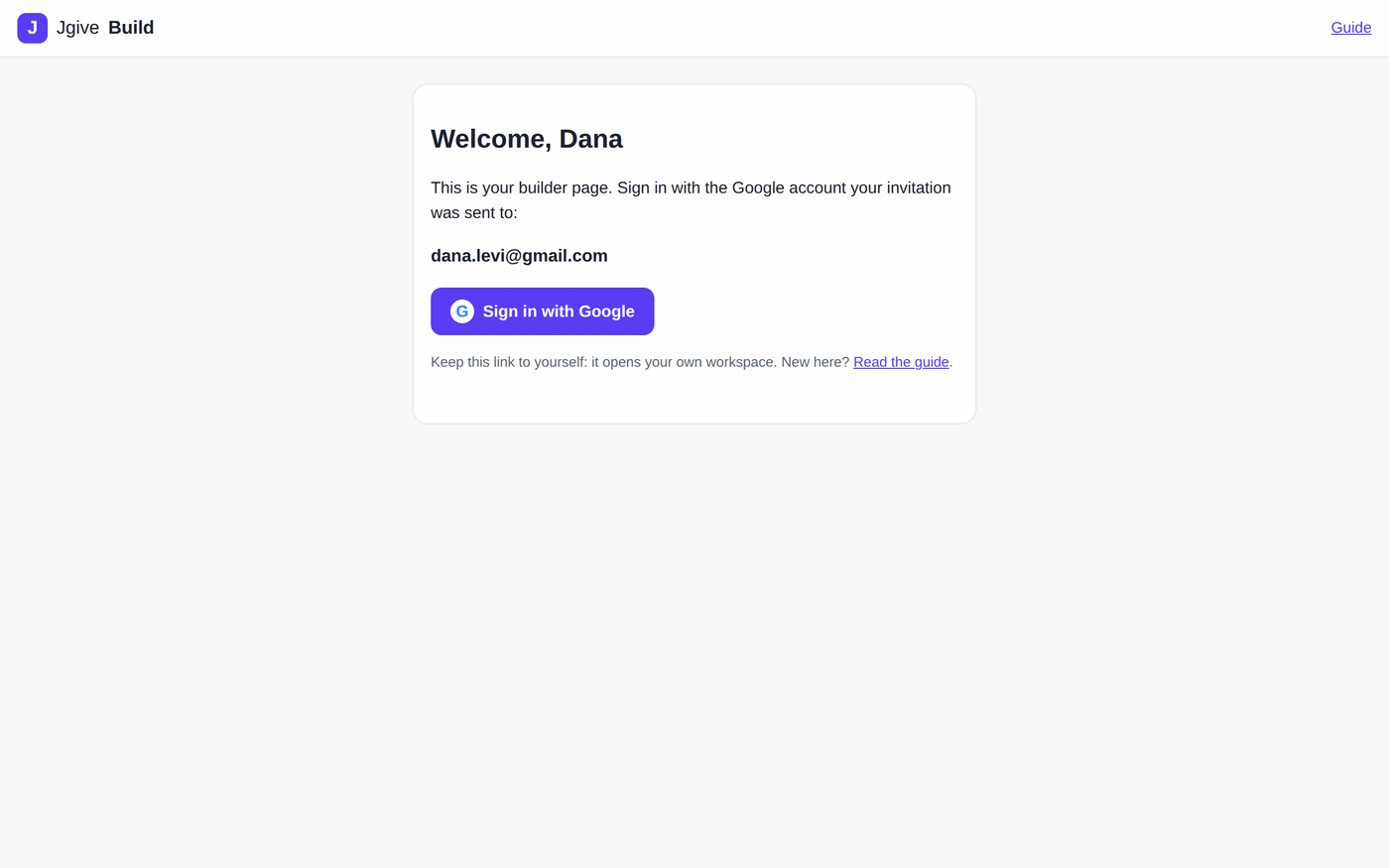
Open your link and sign in
Your invitation e-mail has a personal link. Open it and sign in with Google, using the account the invitation was sent to. Only that account opens your page, and the link is yours alone, so please don't share it.
-
Say what you want
Write it the way you'd explain it to a colleague: where in the app, what happens now, and what should happen instead. The assistant asks what it needs, then sums up the change and starts. Screens, buttons and wording you'd like are all welcome.
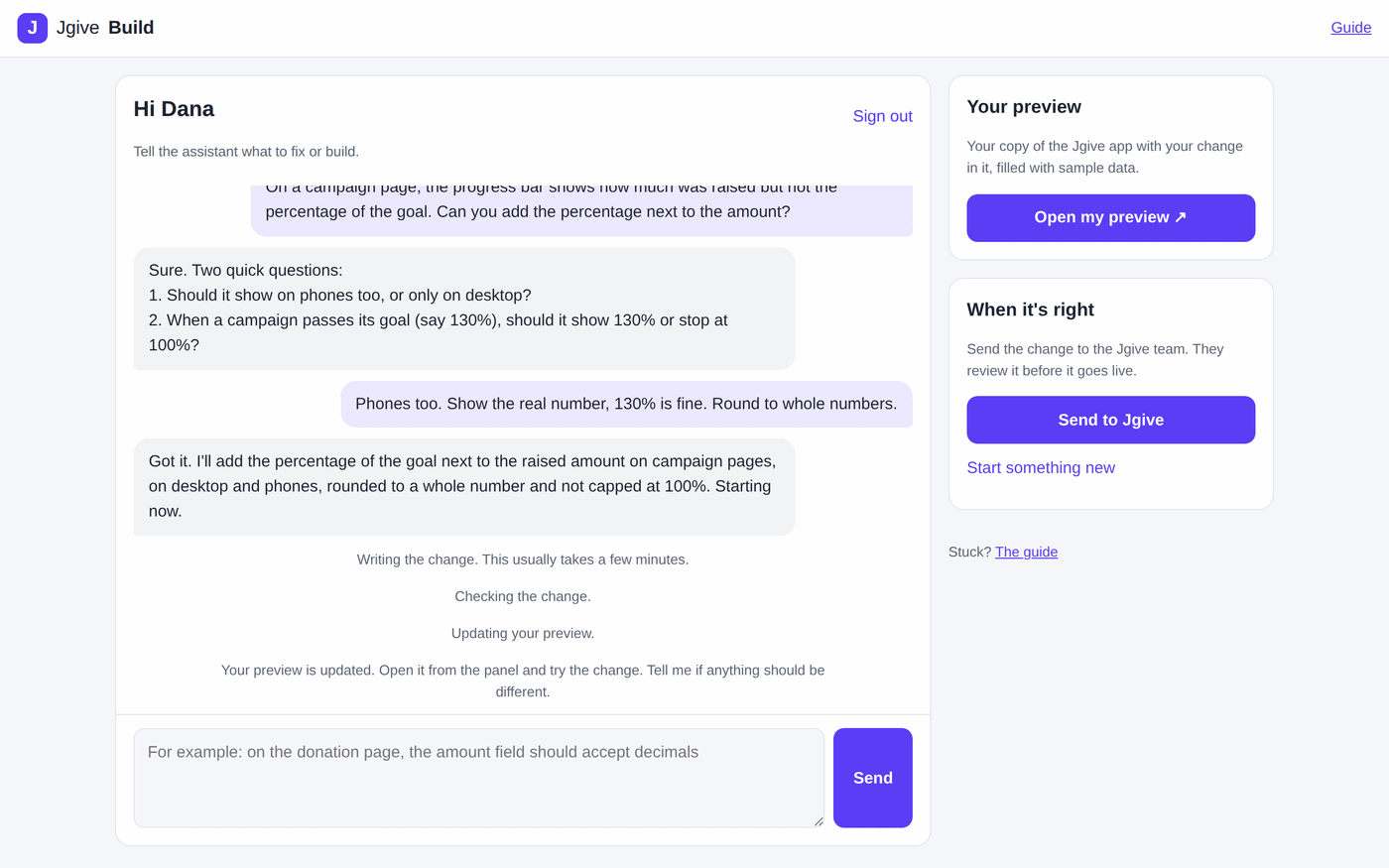
Good: "On a campaign page, the donate button is hidden behind the cookie banner on phones. Move the banner above the button, or make it smaller."
Harder: "Fix the donation page." Say which part and what's wrong.
-
Wait a few minutes
The status line above the chat shows what's happening: writing the change, checking it, updating your preview. Every change is checked automatically before it reaches your preview. If a change is turned down, the assistant tells you, and you can ask for it another way.
-
Try it in your preview
Open my preview opens your own copy of the Jgive app with your change in it, filled with sample data (never real donors). Click around and check it. Not quite right? Say so in the same chat and it's changed again.

Asking for a change after trying the preview. -
Send it to Jgive
When you're happy, press Send to Jgive. The Jgive team reviews it before it goes live, and may get back to you. To work on something else, press Start something new.
Good to know
- You won't see or need the source code. You work with the assistant and your preview only.
- The preview has sample data. Nothing you do there touches real donations or real people.
- Some changes are turned down automatically, for example anything that would show the app's own files or settings. Ask for the same result another way.
- Your link stops working if the Jgive team rotates it. You'll get a new one from them.